
Local statement workflow
Turn Bank Statement CSVs Into a Financial Picture
Capehelm turns statement files you already control into reviewed transactions, Categories and reusable local context. There is no automatic bank synchronization and no finance-data upload to a Capehelm service.
From export to review
A practical local import workflow.
Each stage gives you a clear decision point, especially when a financial institution’s CSV is arranged differently from a saved setup.
- 01
Export your statement
Download a transaction CSV from your financial institution. The available date range, columns and export format are determined by that institution—not by Capehelm.
- 02
Select it on your Mac
Choose the local file in Capehelm. Built-in workflows recognize currently supported formats; another usable layout can go through the configurable custom importer.
- 03
Confirm the mapping
Review which columns represent the date, description or merchant, amount and account context. If the file is ambiguous, Capehelm asks you to confirm rather than pretending the detection is certain.
- 04
Review and categorize
Preview the rows, resolve anything that needs attention, confirm Categories and keep reusable local merchant rules or a custom import profile for later statements.
- 05
Use the history
Reviewed transactions feed Transactions, Trends, Budget actuals, Forecast Coverage and household reports—the places where a statement becomes useful financial context.
What the import unlocks
A CSV is the source. Understanding is the outcome.
After review, Capehelm can group the imported history by Category and merchant so Trends shows where patterns are changing. The same transactions provide actual-spending context for Budget and evidence for Forecast Coverage.
The screenshot shows the analysis created from fictional demonstration data—not a real household statement.
See how imports support Forecast Coverage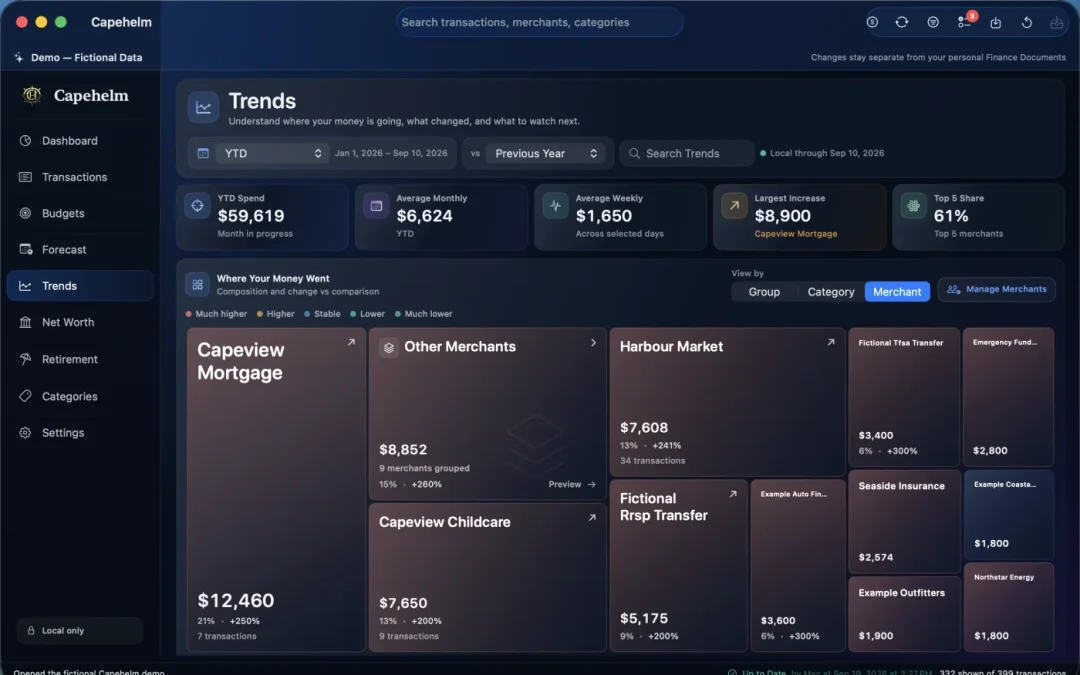
Configurable CSV mapping
When columns differ, confirm what they mean.
Capehelm’s custom importer analyzes a statement and suggests a setup, but keeps the important choices visible. Required information depends on how the statement represents money.
- Date
- The transaction date column and the format used to read it.
- Description or merchant
- The text that identifies what the transaction represents.
- Amount
- One signed amount, separate debit and credit columns, or an amount directed by a transaction-type column.
- Account context
- The account or source name used to keep imported history traceable.
Other details—such as delimiter, number format, currency and rows to ignore—can also matter. If Capehelm has low confidence or the structure changed, the workflow asks for review before import.
Common import questions
Know the boundaries before choosing a file.
Does Capehelm connect directly to my bank?
No. Capehelm does not ask for online-banking credentials or use a direct bank feed. You download a statement from the institution and choose the local file to import.
Does Capehelm upload my CSV?
No. Capehelm processes imported statement content locally and does not send the CSV or its transactions to a Capehelm-hosted finance-data service.
What if my bank uses a different format?
A usable CSV can often be configured by mapping its columns and statement conventions, then saving that profile locally. Capehelm does not promise universal compatibility or perfect automatic detection.
What happens if I import the same statement twice?
Capehelm checks imported data for duplicate transaction fingerprints and reports duplicate or skipped rows. Review the import summary and post-import transactions whenever a statement overlaps an earlier import.
Need help with a format? Describe the statement structure and any non-sensitive error message to [email protected]. Do not email the statement, Finance Document or screenshots containing private financial information.
Bring your own statements
Build useful history without handing over a banking password.
Capehelm is available on the Mac App Store. Import the statement files you choose and keep the resulting financial picture in your local Finance Document.